Open the Image tool
Click the [+] on the left sidebar, then select Image from the dropdown.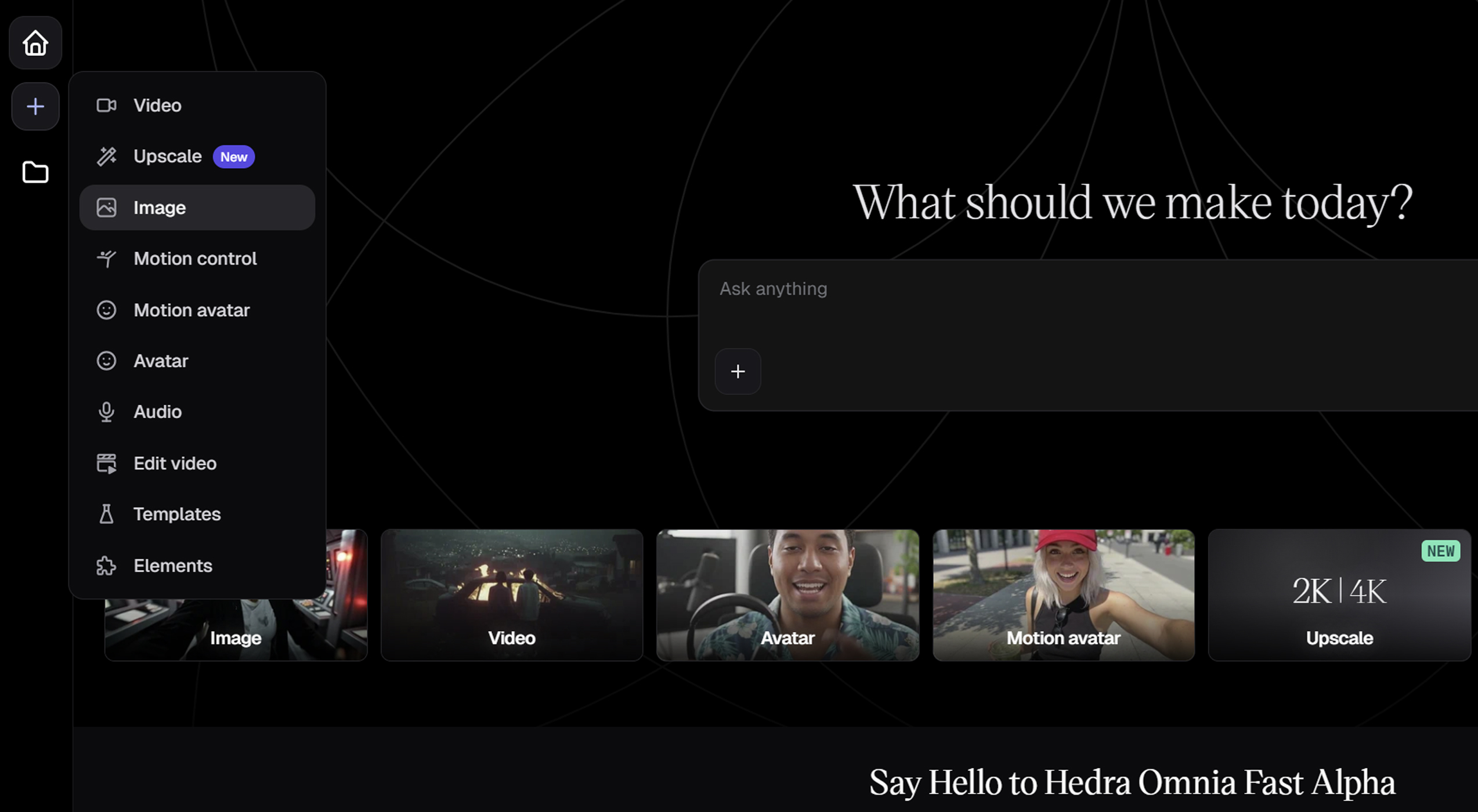
Choose a model
Select a model from the dropdown (e.g., Nano Banana Pro, Seedream 4.5, GPT Image 1.5) located in the prompt box. Note the generation cost and description of what each model is best at.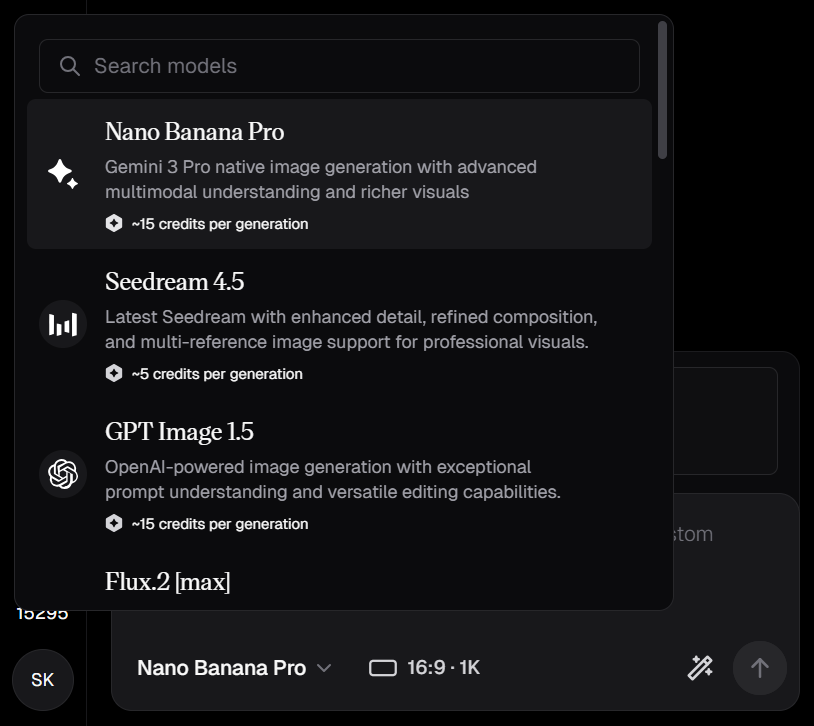
Configure settings
Select your aspect ratio, resolution, and number of generations.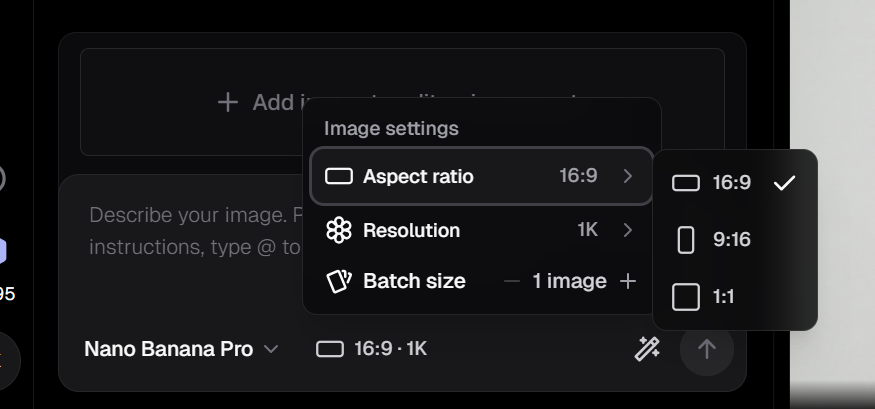
Available options can vary by image model. To see what options are available, select one of the models on the list.
Add reference images (optional)
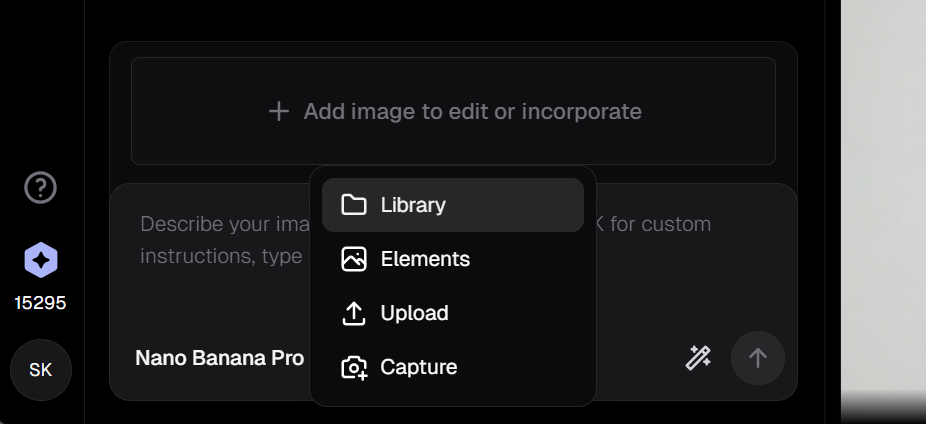
Upload reference images or use prior assets as inspiration by clicking + Add Image to Edit or Incorporate. You can choose from Library, Elements, Upload, or Capture in the dropdown.